반응형
SMALL
- 플레이어 hit 이펙트 수정 , 이전에 플래싱 되는 이미지에서 좀더 시야가 확보되도록 이펙트 변경
- 플레이어의 체력이 1일시 (임시 체력 포함) 화면 주변이 붉게 물드는 이펙트
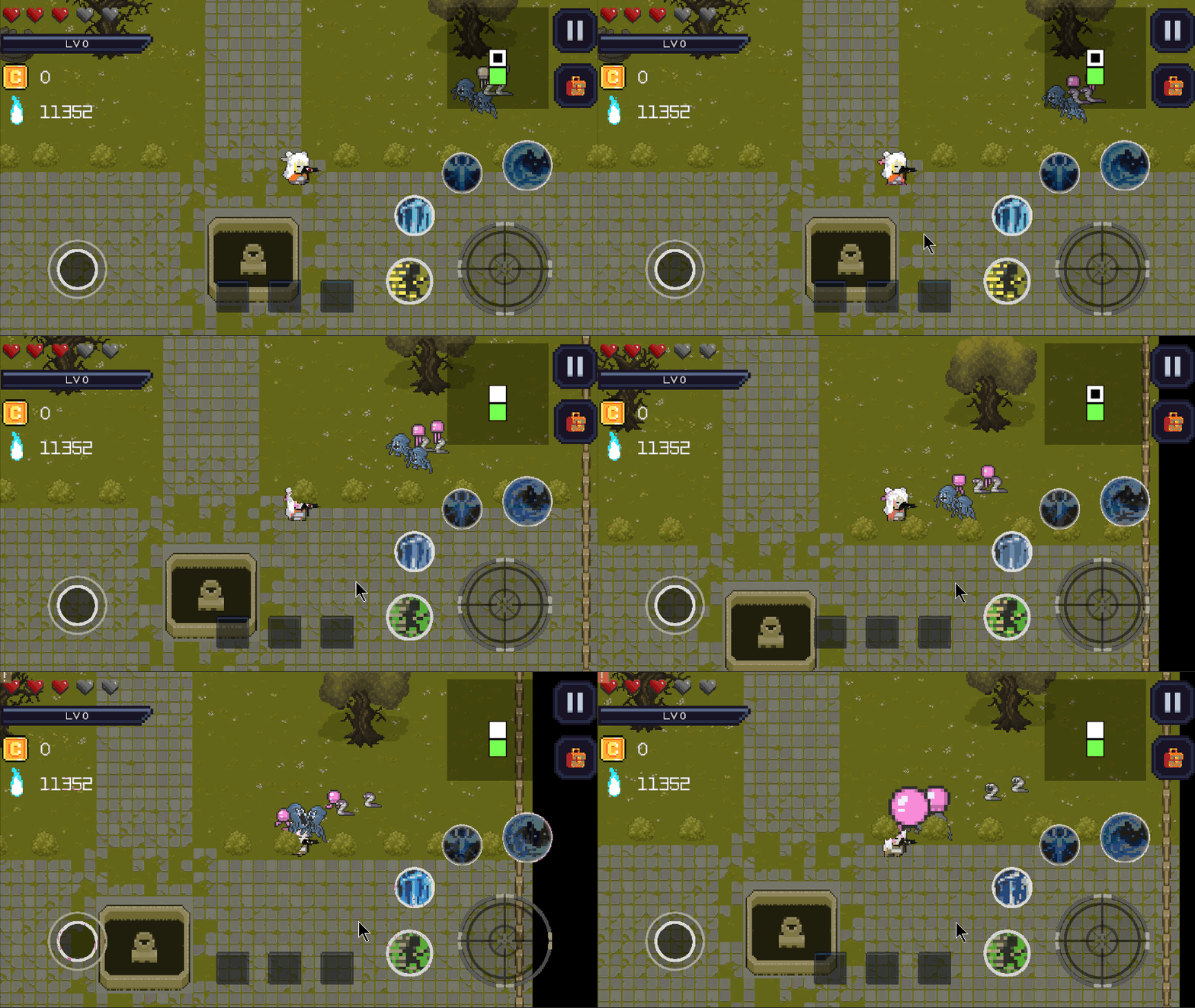

코드 - 메인 카메라 컨트롤러 스크립트
using DG.Tweening;
using System.Collections;
using System.Collections.Generic;
using Unity.VisualScripting;
using UnityEngine;

public class MainCameraController : MonoBehaviour
{
    [SerializeField]
    private float shakeDuration = 0.2f;
    [SerializeField]
    private float shakeMagnitude = 0.7f;
    [SerializeField]
    private float fadeDuration = 1f;

    [SerializeField]
    private List<GameObject> redEffects;
    private List<Vector3> camBounds;
    private List<SpriteRenderer> effectSprites;
    private Color defaultColor = Color.white;

    private bool isShaking;
    public bool isPlayerTeleporting;

    public GameObject player;
    private Vector3 cameraOffset = new Vector3(0, 0, -11);

    private DungeonSceneMain dungeonMain;


    public void Init()
    {
        this.player = GameObject.FindGameObjectWithTag("Player");
        this.camBounds = new List<Vector3>();
        this.effectSprites = new List<SpriteRenderer>();
        this.dungeonMain = GameObject.FindObjectOfType<DungeonSceneMain>();

        for (int i = 0; i < 4; i++) {
            var comp = this.redEffects[i].GetComponent<SpriteRenderer>();
            this.effectSprites.Add(comp);
        }
        EventDispatcher.Instance.AddListener(EventDispatcher.EventName.MainCameraControllerHitEffects, this.HitEffects);
    }

    private Vector3 GetCameraBoundsCenter(Vector3 viewportPoint)
    {
        Vector3 screenPoint = new Vector3(viewportPoint.x * Screen.width, viewportPoint.y
            * Screen.height, Camera.main.nearClipPlane);
        Vector3 worldPoint = Camera.main.ScreenToWorldPoint(screenPoint);
        worldPoint.z = -10f;
        return worldPoint;
    }

    private void CamBoundsInit()
    {
        this.camBounds.Clear();
        this.camBounds.Add(GetCameraBoundsCenter(new Vector3(0.5f, 1f)));
        this.camBounds.Add(GetCameraBoundsCenter(new Vector3(1f, 0.5f)));
        this.camBounds.Add(GetCameraBoundsCenter(new Vector3(0.5f, 0f)));
        this.camBounds.Add(GetCameraBoundsCenter(new Vector3(0f, 0.5f)));
    }

    private void HitEffects()
    {
        this.isShaking = true; // 추가
        this.CamBoundsInit();

        for (int i = 0; i < 4; i++)
        {
            this.redEffects[i].SetActive(true);
            this.redEffects[i].transform.DOKill();
            this.effectSprites[i].DOKill();
            this.transform.DOKill();
            this.redEffects[i].transform.position = this.camBounds[i];
            this.effectSprites[i].color = this.defaultColor;
        }
        this.StartCoroutine(this.CoHitEffects());
    }

    private IEnumerator CoHitEffects()
    {
       this.transform.DOShakePosition(0.2f, new Vector3(1f, -1f, 0f), 20, 90f, false, true)
                .SetEase(Ease.InFlash).OnComplete(() =>
                {
                    this.isShaking = false; // 추가
                });
       for(int i= 0; i <4; i++)
       {
            int index = i;
            this.redEffects[i].transform
                .DOShakePosition(this.shakeDuration, new Vector3(2f, -2f, 0f), 20, 90f, false, true)
                .SetEase(Ease.OutCubic).OnComplete(() =>
                {
                    this.effectSprites[index].DOFade(0, this.fadeDuration).OnComplete(() =>
                    {
                        this.redEffects[index].SetActive(false);
                    });
                });
       }
        yield return null;
    }

    private void LateUpdate()
    {
        if (!this.isShaking && !this.isPlayerTeleporting && this.player != null)
        {
            Vector3 playerPos = this.player.transform.position;
            this.transform.position = playerPos + this.cameraOffset;
        }

        if(this.dungeonMain != null && this.dungeonMain.playerHP < 2)
        {
            this.redEffects.ForEach(i => { i.SetActive(true); });
            this.effectSprites.ForEach( i => { i.color = Color.white; });
        }
        else if(this.dungeonMain != null && !this.isShaking)
        {
            this.redEffects.ForEach(i => { i.SetActive(false); });
            this.effectSprites.ForEach(i => { i.color = this.defaultColor; });
        }
    }
}- 아이템 획득 이펙트 구현 , 아이템을 획득시 아이템이 관련 UI가 있는 방향으로 빨려들어가는 애니메이션을 구현
- 스크린 포인트를 월드로 변경하여 구현해주었으나 그렇게 했을땐 유저가 움직이면 아이템이 UI에 제대로 빨려들어가지 않는다는걸 확인, 이후 메인 카메라의 자식으로 로컬 포인트를 생성해 주어 빨려 들어가는 이펙트를 해결하였다.


코드
public void ClickedItemCheck()
    {
        string goName = this.gameObject.name;
        var playerTrans = GameObject.FindWithTag("Player").transform;
        var relicNum = 0;
        switch (this.gameObject.tag)
        {
            case "Equipment":
                //인벤토리 용량 체크
                EventDispatcher.Instance.Dispatch(EventDispatcher.EventName.UIInventoryAddEquipment,
                    goName, out this.isSpace);
                this.GetEquipmentItem(playerTrans);
                break;
            case "Food":
                EventDispatcher.Instance.Dispatch<string, bool>(EventDispatcher.EventName.DungeonSceneMainTakeFood,
                    goName, out isPlayerHPNotFull);
                this.GetFoodItem(playerTrans);
                break;
            case "Relic":
                EventDispatcher.Instance.Dispatch<string, int>(EventDispatcher.EventName.PlayerShellTakeRelic,
                        goName, out relicNum);
                this.DOMoveToUIAndDestory(relicNum);
                break;
            case "Weapon":
                EventDispatcher.Instance.Dispatch<string>(EventDispatcher.EventName.DungeonSceneMainTakeGun,
                    goName);
                this.GetWeaponItem();
                break;
            case "Coin":
                this.DOMoveToUIAndDestory();
                break;
            case "Ether":
                this.DOMoveToUIAndDestory();
                break;
        }

    }

    public Vector3 targetPoint;
    public float duration = 0.5f;

    public void DOMoveToUIAndDestory(int rNum = 0)
    {
        var tag = this.gameObject.tag;
        var mainCamTrans = Camera.main.transform;
        this.transform.SetParent(mainCamTrans);
        var UITargeTrans = default(Transform);
        Debug.Log(rNum);
        if (tag == "Equipment") UITargeTrans = mainCamTrans.GetChild(0);
        else if(tag == "Relic") UITargeTrans = mainCamTrans.GetChild(rNum);
        else UITargeTrans = mainCamTrans.GetChild(4);

        this.targetPoint = new Vector3(UITargeTrans.localPosition.x, UITargeTrans.localPosition.y,
            this.transform.localPosition.z);

        this.transform.DOLocalMove(this.targetPoint, this.duration)
            .SetEase(Ease.OutQuad)
            .OnComplete(() => {
                if (tag == "Relic") this.UpdateRelicUI();
                else if (tag == "Coin") this.GetCoin();
                else if (tag == "Ether") this.GetEhter();
                Destroy(this.gameObject);
            });
    }

    private void OnDisable()
    {
        this.transform.DOKill();
}- 그 외에 위의 gif에서 확인할수 있듯 유저가 다가가서 먹기 또는 클릭하여 먹기를 구현하였는데 레이캐스트를 이용한 구현 + Unirx를 이용하여 비동기 입력 체크받아 구현 하였다.
- Unirx의 경우 update 메서드와 같이 인풋을 프레임 별로 받아 처리할수 있는데 일단 기능은 같지만 특정 오브젝트의 입력 체크 주기를 조절할수 있다는 장점이 있었다. 우선 처음 사용해보는 플러그인 인지라 단순히 마우스 입력을 받는 용도로 사용했지만 Update 문의 최대 단점인 bool 값의 난무와 입력받고 싶은 주기를 조절할수 없다는 단점을 해결시켜주는 아주 훌륭한 플러그인 인듯 하다.
코드
 public void Init()
    {
        this.factory = this.gameObject.GetComponent<ShopFactory>();
        Observable.EveryUpdate()
           .Where(_ => Input.GetMouseButtonDown(0))
           .Subscribe(_ => HandleInput())
           .AddTo(this);
        EventDispatcher.Instance.AddListener<Transform, bool>(EventDispatcher.EventName.ChestItemGeneratorMakeChest,
            this.MakeChset);
        EventDispatcher.Instance.AddListener<Transform, string>(EventDispatcher.EventName.ChestItemGeneratorMakeItemForChest,
            this.MakeItemForChest);
        EventDispatcher.Instance.AddListener<string>(EventDispatcher.EventName.ChestItemGeneratorMakeItemForInventory,
            this.MakeItemForInventory);
    }


    private void HandleInput()
    {
        // 마우스 왼쪽 버튼이 눌렸을 때 처리
        this.RaycastInput(Input.mousePosition);
    }


    private void RaycastInput(Vector3 inputPosition)
    {
        Vector2 rayOrigin = Camera.main.ScreenToWorldPoint(inputPosition);
        RaycastHit2D hit = Physics2D.Raycast(rayOrigin, Vector2.zero);

        if (hit.collider != null && hit.transform.gameObject.layer == LayerMask.NameToLayer("item"))
        {
            var comp = hit.transform.GetComponent<DropItem>();
            if (comp != null)
            {
                comp.ClickedItemCheck();
            }
        }
    }
반응형
LIST
'프로젝트 > 건즈앤 레이첼스' 카테고리의 다른 글
| [유니티 프로젝트] UNIRX 를 이용한 월드 아이템 팝업 구현 (0) | 2023.05.23 |
|---|---|
| [유니티 프로젝트] 미니맵 기능 추가 및 필드 재화 & 에테르 재화 연출 및 획득 연출 & 인벤토리 아이템 획득 연출 (1) | 2023.05.21 |
| [유니티 프로젝트] 2023.05.17 개발노트 (1) | 2023.05.17 |
| [유니티 프로젝트] 오디오 매니저 제작 (0) | 2023.05.16 |
| [유니티 프로젝트] 2023.05.14 개발 현황 (0) | 2023.05.14 |